Accessible Cookie Consent manager for DNN
The accessible cookie consent manager for DNN is a module designed to ensure GDPR compliance on a DNN install.
This site serves as a demonstration of the module.
In the bottom right corner you will find the cookie module.
- Click on "Manage Settings" to open the cookie prefererence center
- Click on accept or deny all to either accept or deny all cookies
You will notice in the "Cookie Preference Center" that the essential cookies already list out the essential cookies that DNN requires in order to operate. These cannot be deleted or denied. They are essential to the operation of the website. There are also some essential cookies listed which relate to the Azure platform, if you are not on Azure these cookies will not appear.
Cookie Management
The module has a settings panel which you can reach via the settings cog. When you purchase you are given 1 days grace to add your licence key. This means the module will be useable for 1 day and will stop working if you do not add a licence key.
Settings Panel
Licence
Below is an image of the licence panel which appears at the top of the setting pane.
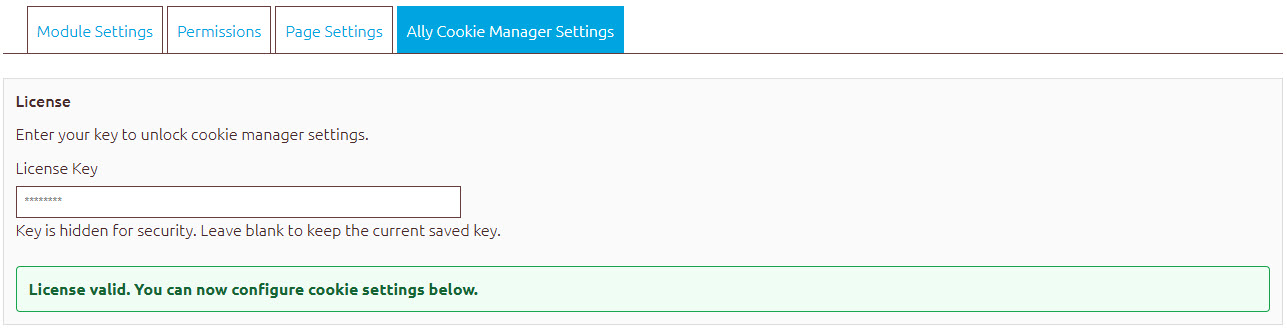
Once you enter the licence key (it will be hidden from view for security), the module options will then be permanently available to you, these can be seen below:
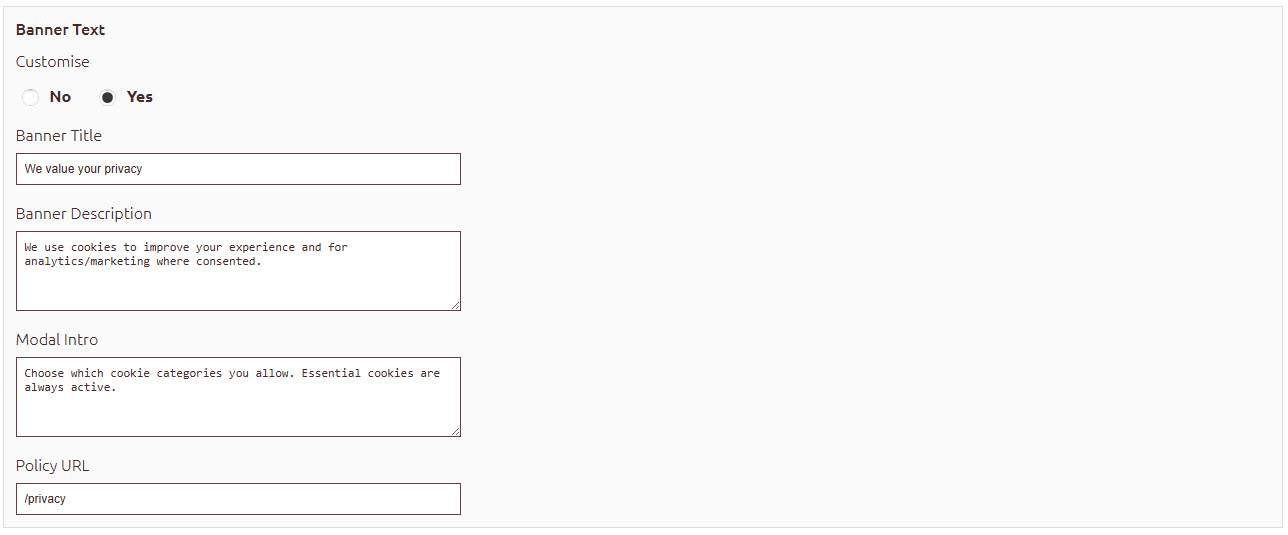
Banner Text
You can adjust the banner text for the main cookie module that appears on the page as well as the popup. The banner text customiser starts off closed. You need to press the "Yes" radio button to expose the options.

As soon as you press the "Yes" radio button you will see the fields appear below, ready for you to customise.
Consent Version
Consent version is designed to force all users to reconsent next time they visit your website. If you change your policy, adjust your cookies or makes any changes then it is good practice to ensure your users reconsent.
Simply use the + button to ammend the version to a higher number. This will ensure that the widget will appear as if they are seeing it for the first time.

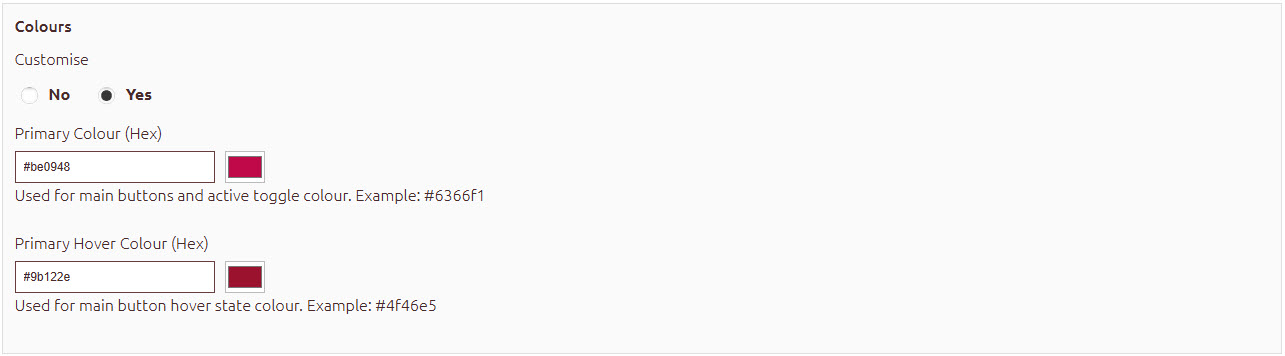
Colours
The colours section starts off closed. Press the "Yes" radio button to expose the colour customiser.

Adjust the colour to suit your brand using either the built in colour pickers or adding your own hex code.
Privacy Button Position
Choose where the floating privacy cookie button appears.

Tracking Scripts
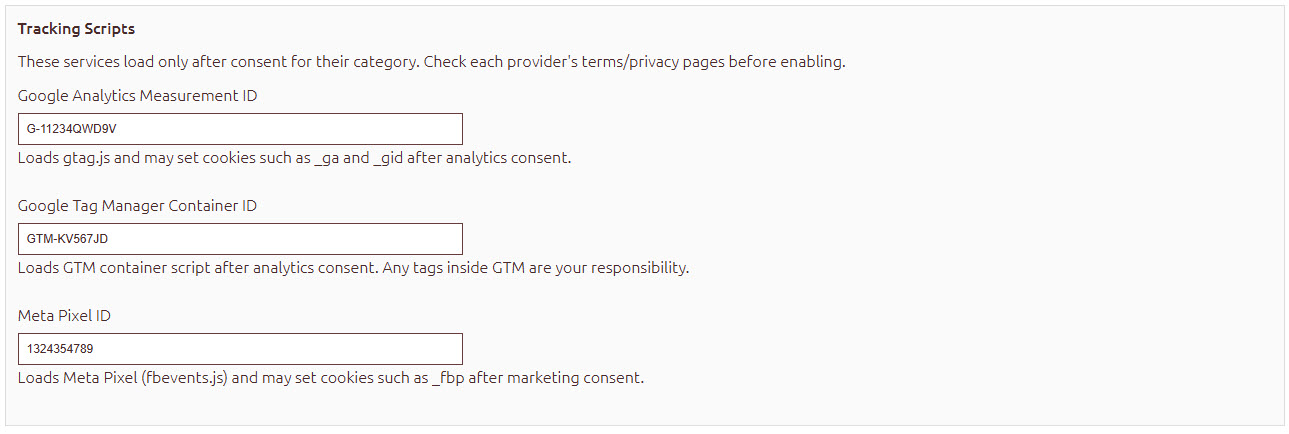
We currently support Google Analytics, Google Tag Manager and Meta Pixel tracking scripts. Simply add your tracking script data in and you are good to go.
The scripts will not run unless the user consents and will automatically drop if they are later revoked.
Managed Scripts
You can include any number of scripts which the user can choose to accept or deny. (Chatbots for example). A chatbot may seem like a necessary tool for your site so can be placed in the necessary category which will prevent the user from removing it. But other scripts you may allow the user to choose by adding them to the marketing or analytics categories.
You can reorder the scripts by pressing the up and down arrows or using the drag handles at the beginning of the row.

IFrame Blocking
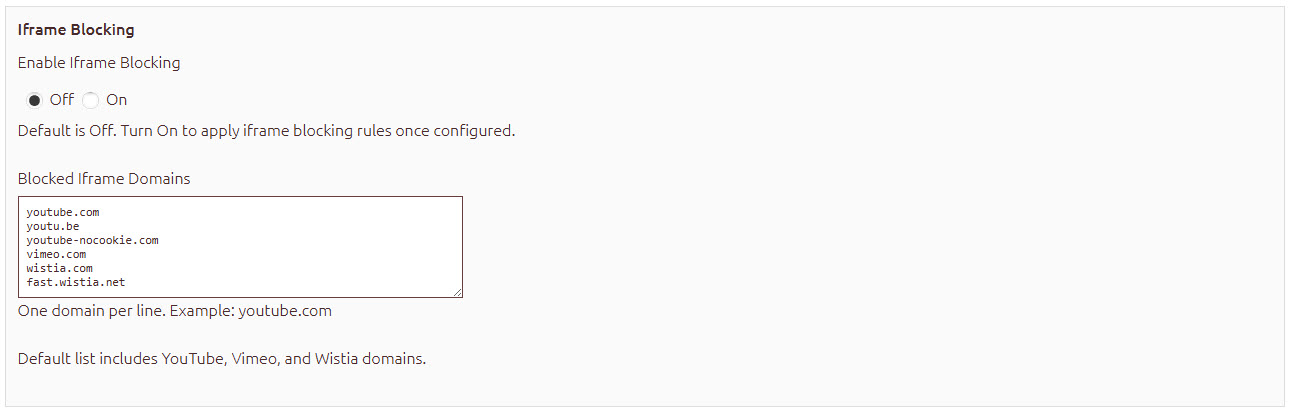
You can block Iframes from loading until a user consents to marketing cookies. Iframes are automatically configured by default to load.
Geo Display Mode
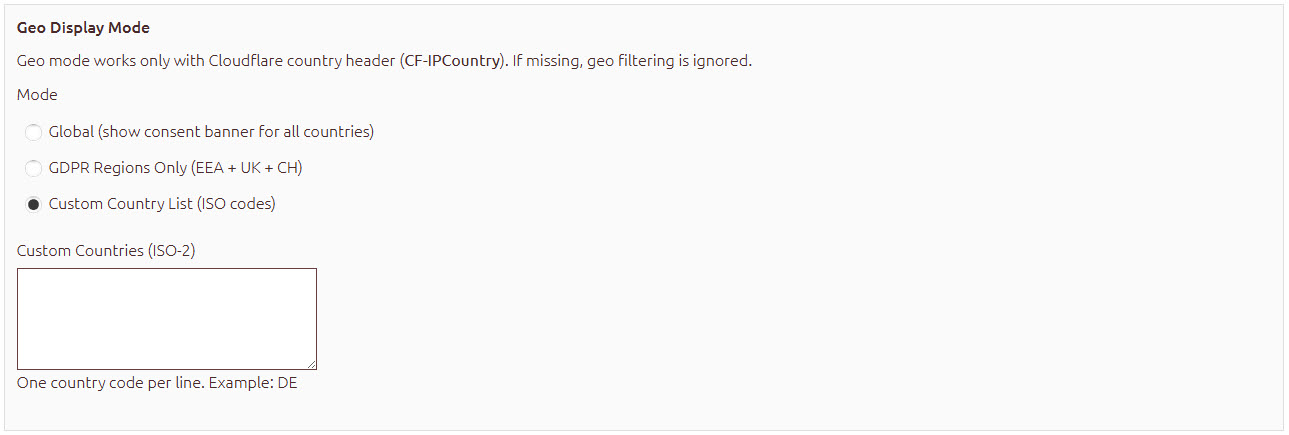
Choose where you want your banner to show.
- Global (show consent banner for all countries)
- GDPR Regions Only
- Custom
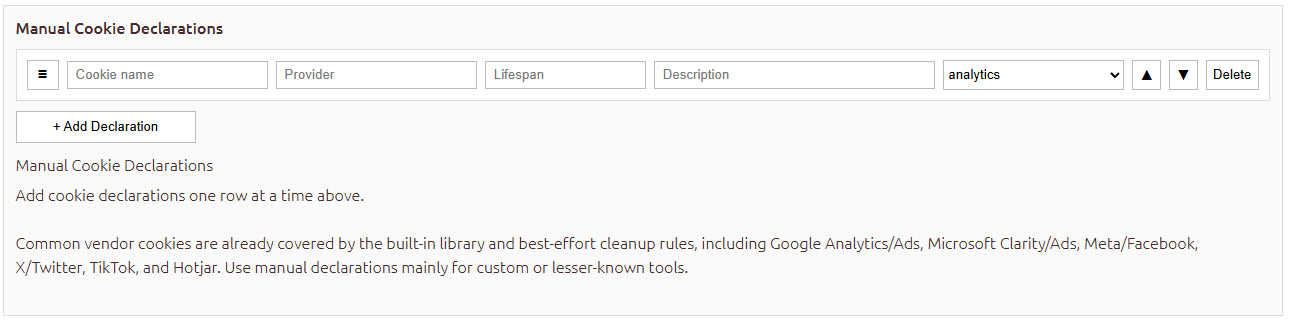
Manual Cookie Declarations
This section is used for lesser known cookies that may be introduced from other modules. If you find cookies that slip thorugh, add them here and they will be automatically removed when the user revokes them.
Common vendor cookies are already covered by the built-in library and best-effort cleanup rules, including Google Analytics/Ads, Microsoft Clarity/Ads, Meta/Facebook, X/Twitter, TikTok, and Hotjar.
You can choose to organise them using the up and down arrows or drag bars if you wish but this has no effect on the order of cookies. The option is there so you can organise them for youself as an admin.